Git and Github
Setup
Install git
sudo apt-get install git
Setup user and email
git config --global user.name "Your Name"
git config --global user.email ""
Generate a new SSH Key
ssh-keygen -t ed25519 -C "your_email@example.com"
Output
>>$ ssh-keygen -t ed25519 -C "your_email@example.com"
Generating public/private ed25519 key pair.
Enter file in which to save the key (/home/user/.ssh/id_ed25519): /home/user/.ssh/github
Enter passphrase (empty for no passphrase):
Enter same passphrase again:
Your identification has been saved in /home/user/.ssh/github
Your public key has been saved in /home/user/.ssh/github.pub
The key fingerprint is:
SHA256:dfghjkl;lkjhgfghjkl; your_email@example.com
The key's randomart image is:
+--[ED25519 256]--+
|                 |
|        2222222  |
|       11111111  |
|      .33333333  |
|   234234o=*     |
|      . o=**+    |
|       ..+==oo   |
|     23423433343 |
|     1213242*rr  |
+----[SHA256]-----+
Copy public key to github
- Open Settings

- Click SSH And PGP
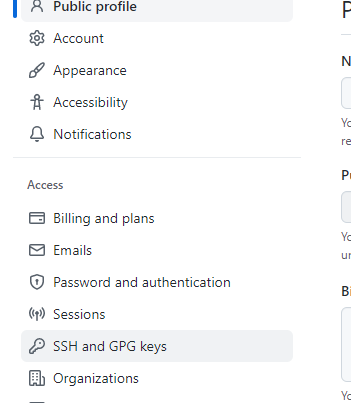
- Click New SSH Key

- Get the key material
WARNING This will show your credentials in clear text. Run this when no one can see your screen and complete until the end
cat ~/.ssh/github.pub
Output
>>$ cat ~/.ssh/github.pub
ssh-ed25519 AAAAC3NzaC1lZDI1NTE5AAAAIPKpa91hiCHWQ/mpNdad+aGSzX5BftyUDNl6YkbgcQQm your_email@example.com
- Past the material into the box
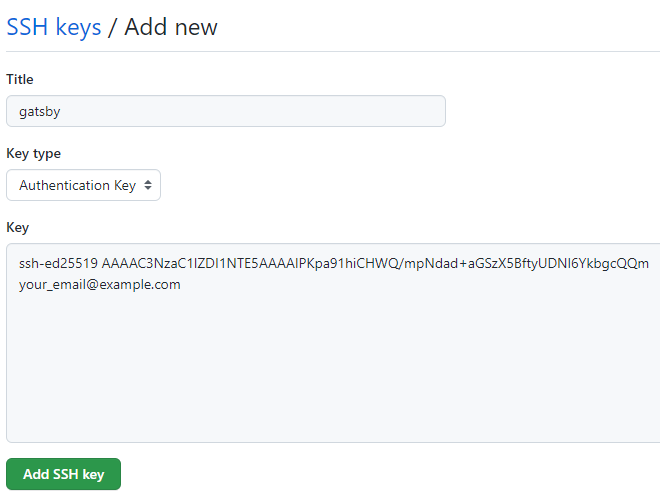
- Click “Add SSH Key” and confirm it is correct
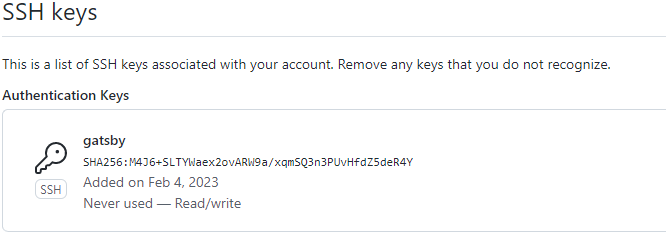
- Remove the key from the terminal
clear
Configure github as a host in ssh
cat << EOF >> ~/.ssh/config

Host github.com
    HostName github.com
    User git
    IdentityFile "~/.ssh/github"
EOF